SVG vs DXF: Which Files Work on Cricut and Silhouette?
For Cricut and Brother ScanNCut use SVG. For Silhouette use SVG in Designer Edition and above, and DXF in the basic edition. That one rule covers most cases. The details below explain why, and what to do when you have a machine mix or older software.
The short answer
| Machine and software | File to use | Notes |
|---|---|---|
| Cricut (Design Space) | SVG | Works on computer, phone and tablet |
| Silhouette Studio, Designer Edition and above | SVG | Opens and cuts SVG |
| Silhouette Studio, basic edition | DXF | The basic edition cannot open SVG |
| Brother ScanNCut (CanvasWorkspace) | SVG | Import, then send to the machine |
| Other cutters | SVG or DXF | Most read SVG; DXF is the fallback |
What is different about SVG and DXF
SVG is a modern vector format. It can hold several layers and colors, and the paths scale without loss. Most craft cutting programs read it.
DXF is an older drawing format from design and engineering software. It stores outlines. It is widely supported by older software and by cutting programs that cannot read SVG, which is why it is the fallback for basic editions.
| SVG | DXF | |
|---|---|---|
| Typical use | Craft cutting programs | Older or basic software, drawing tools |
| Layers and colors | Yes | Outlines, in layers |
| Works in Design Space | Yes | No |
| Works in Silhouette basic edition | No | Yes |
| Size on import | Usually kept | Check and set the size |
If you have both machines
Keep both formats in your folders: put SVG and DXF files side by side in each design's folder, named the same. Pick the one your software reads. Work with SVG when you can, and DXF when you cannot.
Opening the file
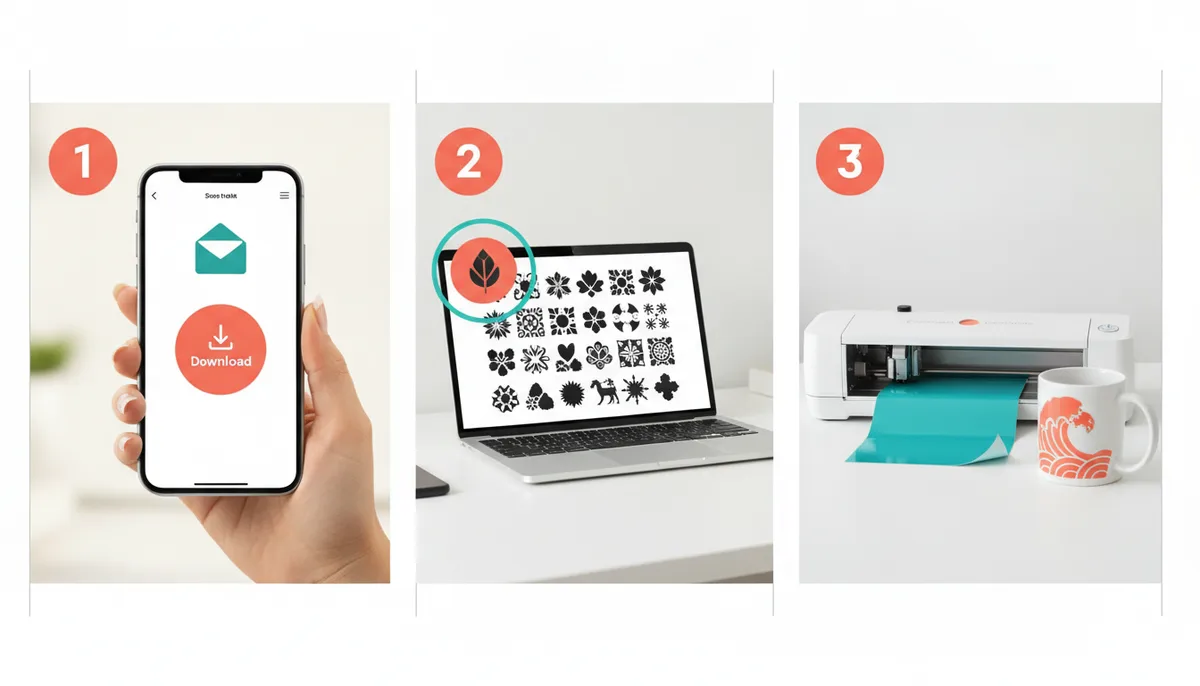
- Unzip the download.
- Cricut: Upload, pick the SVG, save, add to canvas.
- Silhouette: File, Open (or Merge to add to the current page). Pick the SVG, or the DXF in the basic edition.
- Brother ScanNCut: Import in CanvasWorkspace, then send to the machine.
- Set the size, check the page setup, and cut.
If the upload fails, the file is probably still zipped. See how to upload an SVG to Cricut Design Space.
Choosing a source with both formats
A file source that provides only SVG leaves basic-edition Silhouette users out. When you compare sources, check that both formats are there, and that you can see the real file before you download. For a wider checklist, see SVG library vs single SVG files.
What CutNest Design Library provides
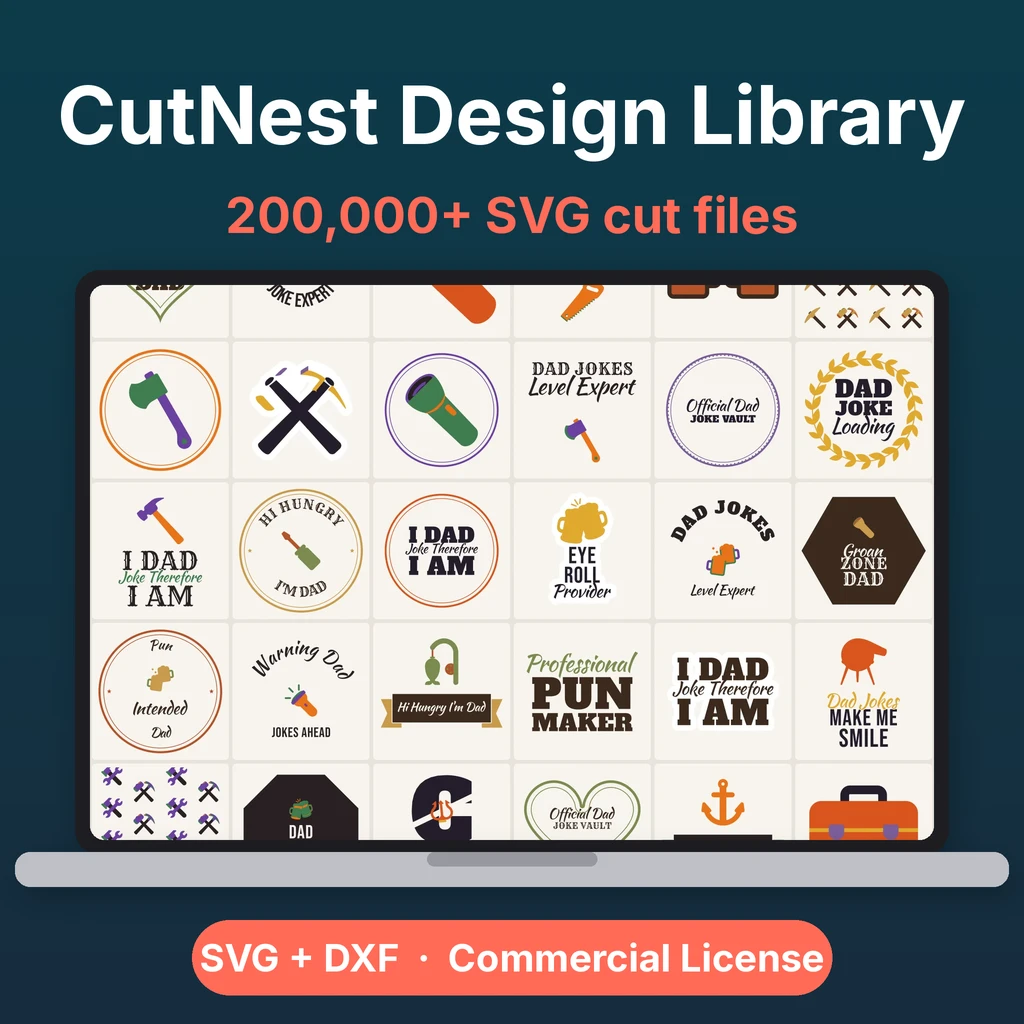
Every design in CutNest Design Library is available as an SVG and as a DXF. The category ZIPs carry SVG and DXF files. The DXF files are in R12 format, an old and widely read version, with each color layer kept as its own layer and the longest side set to 10 inches, so check the size on import. The CutNest Finder web app previews the real file and lets you download one design at a time. Its Start Here guide has upload steps for Cricut, Silhouette and Brother ScanNCut software, and a note that the basic edition of Silhouette Studio needs DXF.
The designs work in any software that reads these formats. CutNest is independent of the machine makers.
Next steps
If you are starting out, Cricut for beginners: your first project is a good place to begin. If you are weighing a subscription against owning files, read Cricut Access vs owning a design library.
CutNest is not affiliated with Cricut, Silhouette or Brother. Brand names appear only to describe compatibility and the topic searched.