How to Upload an SVG to Cricut Design Space (and Fix Errors)
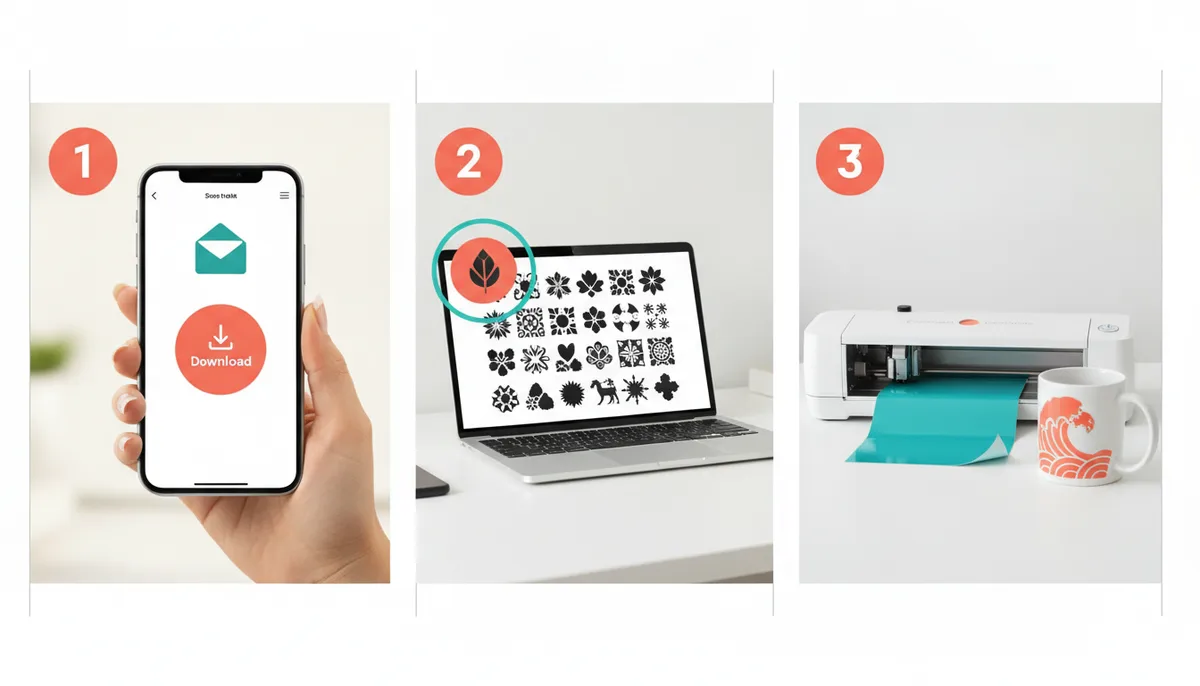
To upload an SVG: unzip the download, open Design Space, choose Upload, pick the .svg, save it, and add it to the canvas. If the upload fails, the cause is almost always that the file was still zipped. The steps below cover a computer, an iPhone or iPad, and an Android device.
Step 1: Unzip the download
Most SVG downloads come as a ZIP. The cutting program cannot read a ZIP, so you must open it first.
- Windows: right-click the ZIP and choose Extract All.
- Mac: double-click the ZIP.
- iPhone or iPad: in the Files app, tap the ZIP once and it unzips.
- Android: open the Files app, tap the ZIP and choose Extract.
You should end up with a folder of files ending in `.svg`. Keep one subfolder per category so you can find designs again.
Step 2: Upload in Design Space
- Start a new project.
- On the left, choose Upload, then Upload Image.
- Pick the `.svg` file.
- Name it and press Save.
- Select it in your Uploads and press Add to Canvas.
On the phone app the path is similar: open Upload and select the SVG from the Files app or the Downloads folder.
Step 3: Check size and layers
- Set the width in the top bar. A shirt design might be 9 to 12 inches wide, a sticker 2.5 to 3.5 inches.
- Open the Layers panel. Each color or part should be its own layer.
- Ungroup if you want to change the color of one part.
- Weld script letters so they cut as one connected word.
- Attach pieces that must stay in place on the mat.
Why your SVG will not upload
| Symptom | Likely cause | Fix |
|---|---|---|
| The file cannot be selected | Still inside a ZIP | Unzip it first |
| The upload spins and fails | Large or complex file, weak connection | Wait, reconnect, try again |
| Only a rectangle cuts | Design hidden, or layers merged | Ungroup and check the Layers panel |
| Design is huge or tiny | Original size on import | Change width and height with the lock closed |
| Error on a file from an unknown source | File is not a true SVG | Re-download from the source |
A common shortcut: download one design at a time
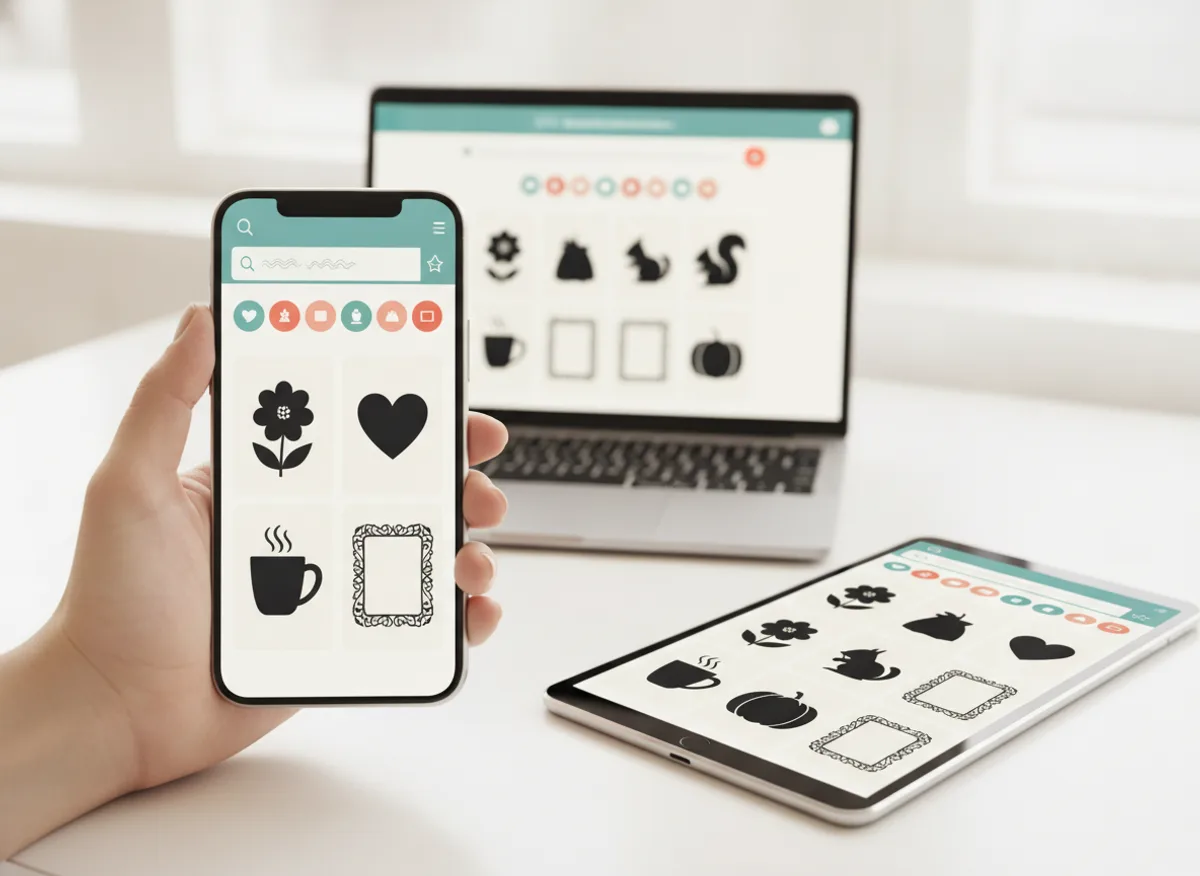
CutNest Design Library organizes files so this goes faster. Every category is a ZIP containing SVG and DXF files, and the CutNest Finder web app lets you search by keyword, preview the real file on screen, and download one design at a time instead of unzipping a whole category. A Start Here PDF covers the unzip and upload steps for three programs, so you do not need to search for instructions on a phone screen.
Other machines
The same idea works in other software: upload or open the SVG, check the size, then send it to the machine. If your software is an older or basic edition that cannot open SVG, the DXF file is the fallback; see which files work on Cricut and Silhouette.
Next steps
Once the design is on the canvas, you are ready to cut. Try your first Cricut project on cardstock, or move to a shirt with the HTV guide.
CutNest is not affiliated with Cricut. Brand names appear only to describe compatibility and the topic searched.