How to Print a PDF Sewing Pattern at Actual Size
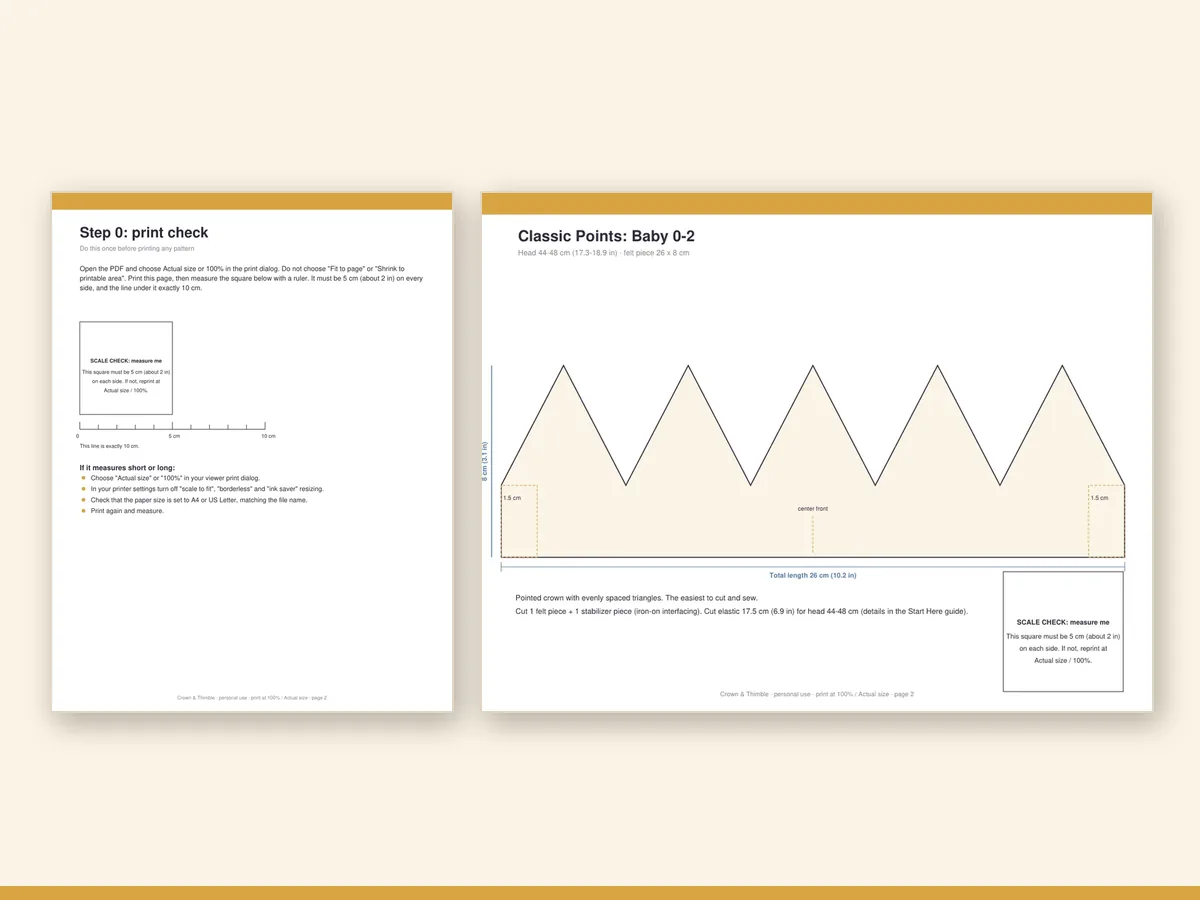
Most patterns fail at the printer, not at the sewing machine. A PDF pattern is a promise about size, and a print dialogue can quietly break that promise by shrinking the page by three or four percent. The pieces still look right, so you cut the felt, stitch the crown and discover that it is too small. This guide shows how to print at actual size every time, using the method built into Crown & Thimble · Felt Birthday Crown Pattern Kit.
Why scale goes wrong
A PDF contains exact dimensions: this piece is 14 cm wide. The printer, though, thinks about paper. If the page is nearly the size of the paper, and the printer cannot print to the very edge, it helps by shrinking everything a little. This is the default in many dialogues, labelled "Fit", "Shrink to printable area" or "Scale to fit". It is a helpful default for documents and a disaster for patterns.
The five-step method
- Open the PDF in a desktop reader. Adobe Acrobat Reader, Preview on a Mac or the PDF viewer in a browser. Avoid printing from a phone app or a cloud preview, which often hides the scale option.
- Open the print dialogue and find the page scaling option.
- Select Actual size or 100 percent. Turn off Fit, Shrink and Scale to fit.
- Check the paper size. Choose A4 or US Letter to match the file you opened.
- Print the print check page first. Do not print the full pattern until you have measured the square.
The scale square test
Every pattern page in the kit has a square that is 2 inches, or 5 centimetres, on each side, labelled "measure me". The print check page is a single page with the square so you can test without wasting ink.
Measure it with a ruler, along both the horizontal and vertical edges. If it measures correctly, the scale is correct. If it is off by even 2 or 3 millimetres, repeat the print with the scaling option checked. A rule of thumb: more than 1 millimetre out is worth fixing.
The test works for any pattern with a scale square, not only crowns. It is the quickest way to find out if your printer is playing tricks.
A4 versus US Letter
The kit includes every file in both A4 and US Letter. Use the one that matches the paper you have. The two are close in size, but A4 is a little longer and narrower, and printing an A4 file on Letter (or the reverse) without rescaling clips the edges. With both versions, you never need to rescale.
Tiling and taping pages
Larger pieces, such as the Teen/Adult crown, span more than one sheet. The pages have alignment marks.
- Print all pages at the same setting.
- Trim the margin on one side of each page where the pages meet. Do not trim both.
- Line up the alignment marks and tape on the back with low-tack tape.
- Check a straight line across the join with a ruler.
- Flatten the assembled pattern under a book.
Printer settings that cause trouble
- Borderless printing can scale the page slightly. Turn it off.
- Eco or draft mode produces pale lines that are hard to trace. Use standard quality.
- Automatic duplex (printing both sides) may change the scale on some printers. Print one side.
- "Print as image" can blur thin lines. Leave it off.
Fixing a pattern that printed small
If the scale square measures too small, do not enlarge the print on a photocopier. Return to the print dialogue and reprint at 100 percent. If it still prints small, try another PDF reader or another printer, such as a library or a print shop. Some print shops will print at actual size for a small fee, and you only need to do it once.
Saving paper
You do not need to print every page. Print only the crown shape and size you need, plus the appliqué sheet for your theme and the guide. The Start Here guide tells you which pages to print. Keep the rest on your computer for next year.
Tracing and transferring
After printing, trace the shapes onto felt. If you plan to reuse a shape, glue the paper to thin card first and cut it out as a stencil. Card templates last for many crowns, and they are easier to trace around than floppy paper.
Why it matters for crowns
A crown is a close-fit piece. A 4 percent error on a 52 cm head is about 2 cm, the difference between a comfortable crown and a headband that pinches. A small mistake in scale becomes a large mistake in wearing. That is why the check square is on every page and why the size chart matters.
For a longer guide to using the printed pieces, see the printable template guide, or go straight to making the crown with the DIY felt crown guide.
In short
Print at 100 percent, turn off every kind of scaling, test the square before you cut, and tape tiles carefully. It takes five minutes and prevents the most common failure in pattern making.
A pre-print checklist you can copy
- PDF opened in a desktop reader, not a phone preview.
- Paper size matches the file (A4 or US Letter).
- Page scaling set to Actual size or 100 percent.
- Borderless, eco and duplex options off.
- Print check page printed first and the square measured in both directions.
- Only the pages you need are selected in the page range.
- Tape and a ruler on the table before the tiles come out.
Run through it once and it becomes a habit. The first time you do it, it takes five minutes; the tenth time, it takes one.
What to do when the numbers still look wrong
Occasionally the square measures correctly but a piece still looks off. Check that you are measuring the right edge and that the paper has not curled, which can add a millimetre or two when the sheet is lifted. Lay the sheet flat under a book for a few minutes, then measure again. If you are still unsure, lay your ruler against the printed size marks on the pattern, which state the length of each band in centimetres and inches, and compare them with your head measurement.